Installation & Activation Guide
How to install & activate Microsoft Office Home & Business 2024 (Mac)
Follow these simple, illustrated steps to get Microsoft Office Home & Business 2024 (Mac) up and running on your macOS device. Takes about 10 minutes.
The installation at a glance
STEP 1Redeem key
STEP 2Download .pkg
STEP 3Run installer
STEP 4Mac password
STEP 5Finish
STEP 6Sign in & activate
Step-by-step instructions
1
Redeem your product key
Office for Mac is downloaded after you redeem the licence. Click Activate / Sign in below (this opens setup.office.com), sign in with a free Microsoft account or create one, then enter the 25-character product key from your order email, choose your country/region and click Continue. Your product now appears under Services & subscriptions in your account.
2
Download Office for Mac from your account
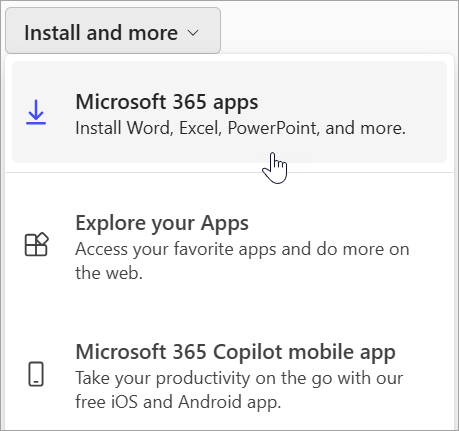
Go to your Microsoft account (account.microsoft.com), find Office Home & Business under the products you own, click Install and choose Mac. The Microsoft Office installer.pkg file downloads to your Downloads folder.
3
Open the installer package
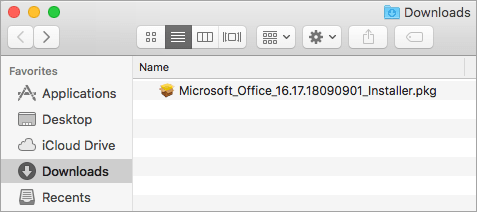
Open Finder ▸ Downloads and double-click Microsoft Office installer.pkg to launch the wizard. Tip: if macOS says it’s from an unidentified developer, wait a moment, then Control-click the file and choose Open.
4
Run the installer
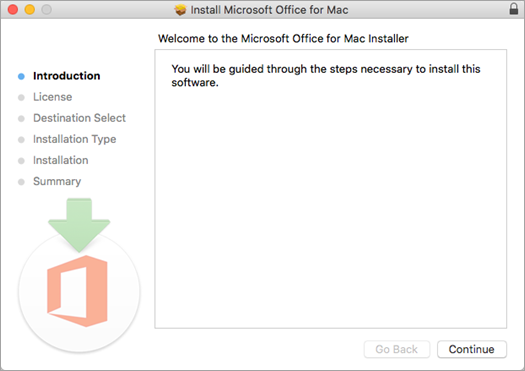
On the first screen click Continue, review the software licence and click Continue, then Agree. Confirm the disk-space requirement / install location and click Install. (To install only certain apps, click Customise first and untick the ones you don’t need.)
5
Enter your Mac password
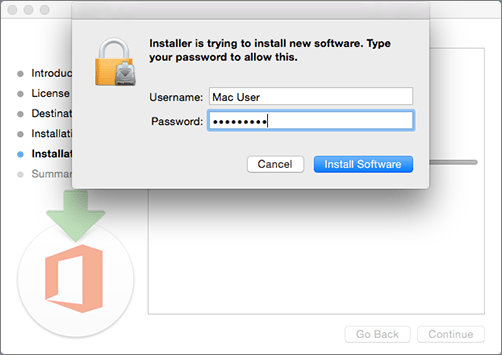
When prompted, type your Mac login password (the one you use to sign in to your Mac) and click Install Software to begin copying the apps.
6
Finish the installation
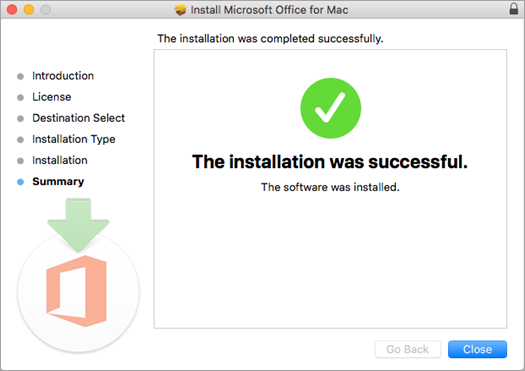
Office installs in a few minutes. When you see “The installation was successful”, click Close. You can drag the installer package to the Trash afterwards.
7
Open Word from Launchpad
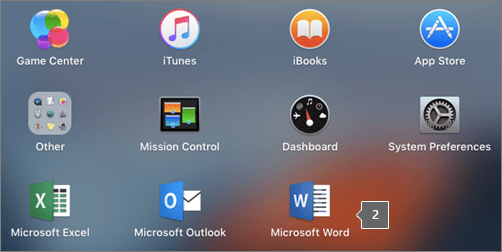
Click the Launchpad icon in the Dock and open Microsoft Word (or Excel / PowerPoint). Tip: Control-click the app in the Dock and choose Options ▸ Keep in Dock to pin it for quick access.
8
Sign in to activate
The What’s New window opens automatically — click Get Started, then Sign in and use the same Microsoft account you redeemed the key with. Activation completes instantly (there is no product-key box on Mac). You can confirm any time under File ▸ Account.

System requirements
- One of the three most recent versions of macOS (Apple silicon or Intel)
- 4 GB RAM
- 10 GB of available disk space on an APFS-formatted drive
- 1280 x 800 or higher screen resolution
- An internet connection and a Microsoft account
License & activation
On Mac the licence lives in your Microsoft account. Redeem your key at setup.office.com, then sign in with the same account inside Word/Excel to activate — there is no product-key box on Mac. Important: if an older Office version or a Microsoft 365 trial is already installed, uninstall it first (drag those apps from Applications to the Trash) to avoid activation conflicts. Confirm activation under File ▸ Account.
Stuck on a step?
Our order team can help with license-key delivery and activation questions. Reach us at services@maventechsoftware.com or call 1 (805) 294-1524.
