Installation & Activation Guide
How to install & activate Microsoft Office 2021 Home & Business (Windows)
Follow these simple, illustrated steps to get Microsoft Office 2021 Home & Business (Windows) up and running on your Windows 10 / 11 device. Takes about 10 minutes.
The installation at a glance
STEP 1Download ISO
STEP 2Mount image
STEP 3Run setup
STEP 4Open an app
STEP 5Enter key
STEP 6Activated
Step-by-step instructions
1
Download the disc image (.iso)
Click Download installer below to download the official Office disc image (an .iso file). Save it to your Downloads folder.
2
Mount the ISO
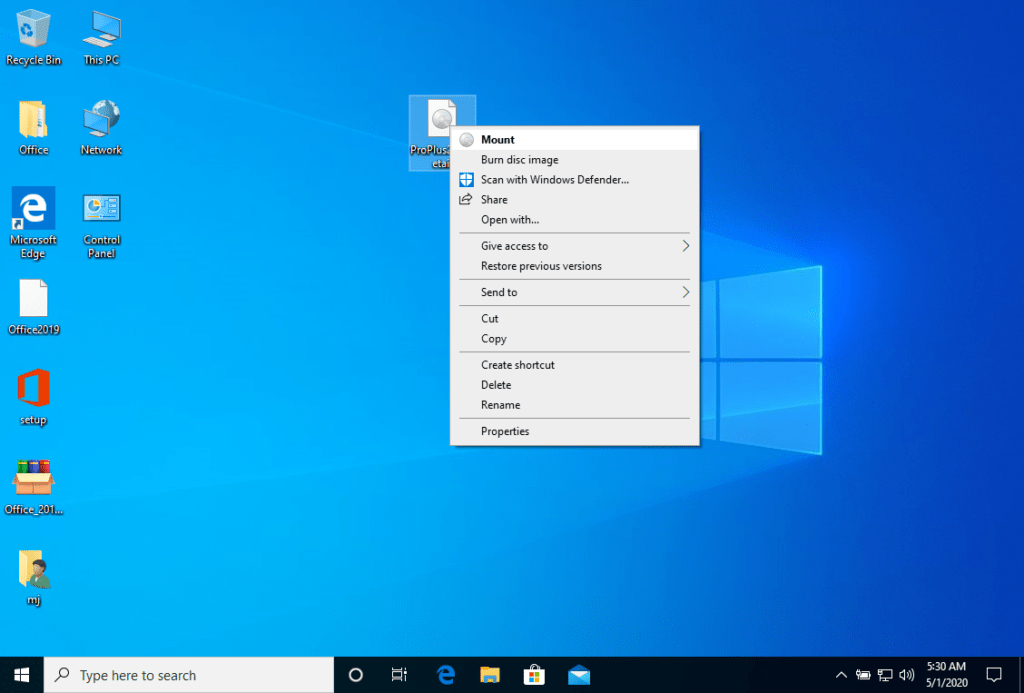
Right-click the downloaded .iso file and choose Mount. Windows opens it as a virtual DVD drive in File Explorer.
3
Run Setup
Open the new drive and double-click Setup (use Setup64 for the 64-bit version). Approve the Windows prompt and let Office install.
4
Open any Office app
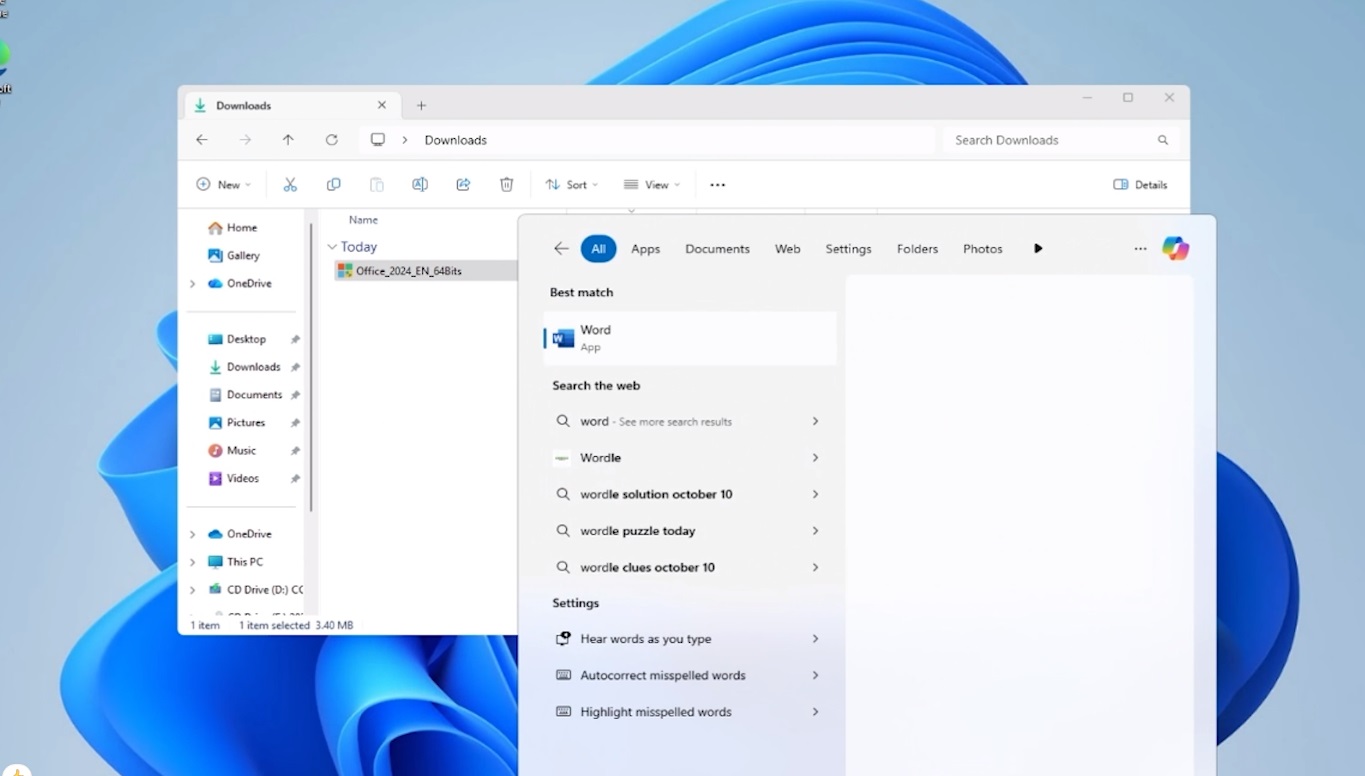
When installation finishes, launch an app such as Word from the Start menu.
5
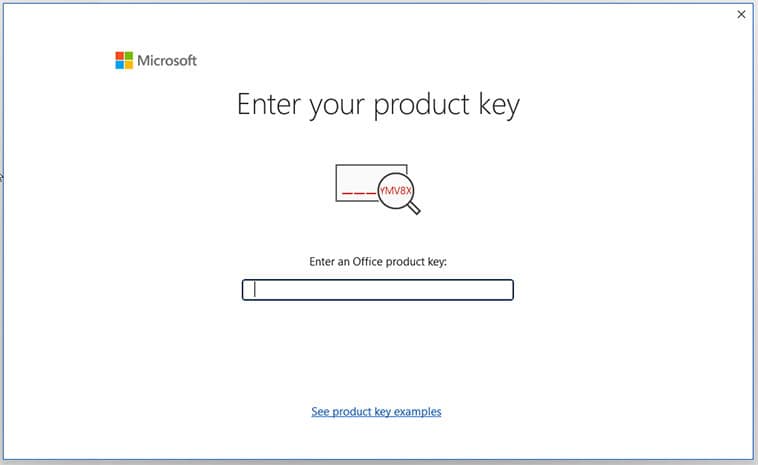
Activate with your key
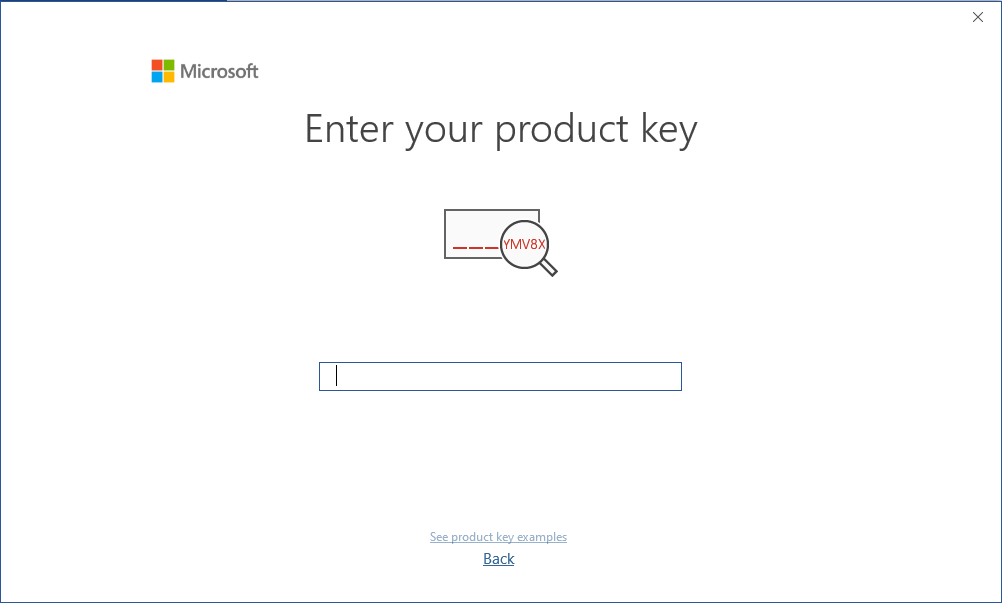
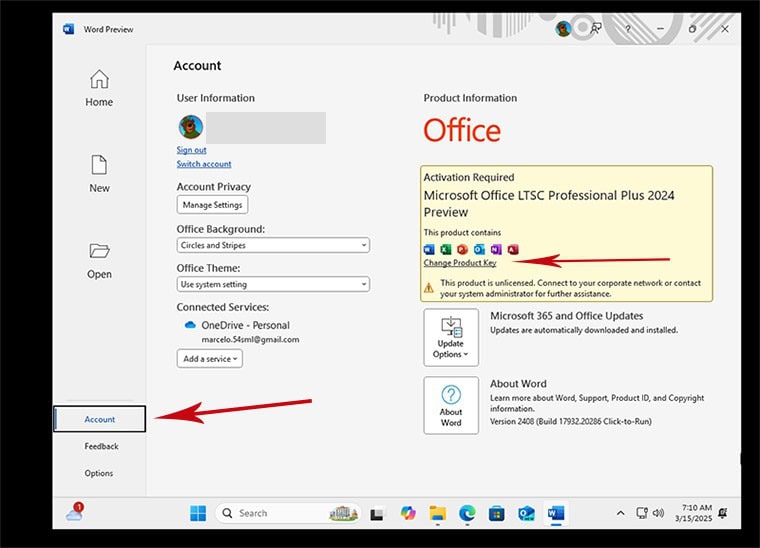
Open File ▸ Account ▸ Change Product Key and enter the 25-character key from your order email. (Home editions can also be linked to a Microsoft account at sign-in.)
6
Done — Office is activated
Confirm the key and your Office suite is activated for life on this PC.
System requirements
- 1 GHz or faster, 2-core processor (x86/x64)
- 4 GB RAM
- 4 GB of free hard-disk space
- Windows 10 or Windows 11
- An internet connection during setup
License & activation
After installing, enter your key via File ▸ Account ▸ Change Product Key, or sign in / redeem online with a free Microsoft account at setup.office.com. Remove any older pre-installed Office trial and restart before activating.
Stuck on a step?
Our order team can help with license-key delivery and activation questions. Reach us at services@maventechsoftware.com or call 1 (805) 294-1524.
