Installation & Activation Guide
How to install & activate Microsoft Office 2019 Professional Plus (Windows)
Follow these simple, illustrated steps to get Microsoft Office 2019 Professional Plus (Windows) up and running on your Windows 10 / 11 device. Takes about 10 minutes.
The installation at a glance
STEP 1Download
STEP 2Run as admin
STEP 3Install
STEP 4Open an app
STEP 5Change key
STEP 6Activated
Step-by-step instructions
1
Download the official installer
Click Download installer below to get the genuine Microsoft setup file. Save it somewhere easy to find — usually your Downloads folder. Need a different language or the 32-bit build? Just ask our support team.
2
Run the installer as administrator
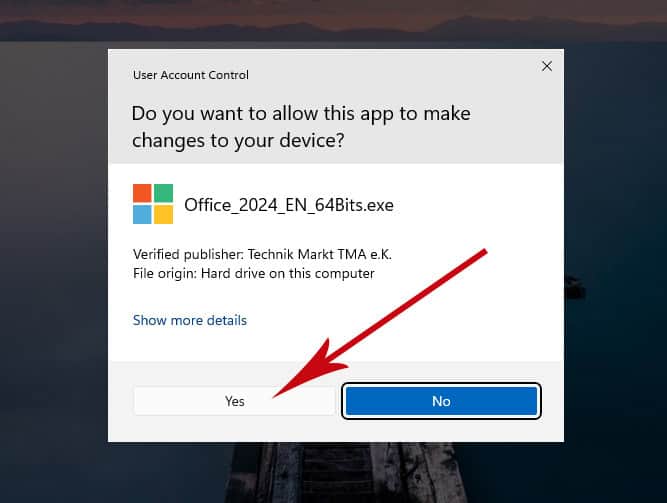
Right-click the downloaded file and choose “Run as administrator”. When Windows asks whether to allow the app to make changes, click Yes. Keep your PC online — the installer pulls the latest files straight from Microsoft.
3
Let Office install
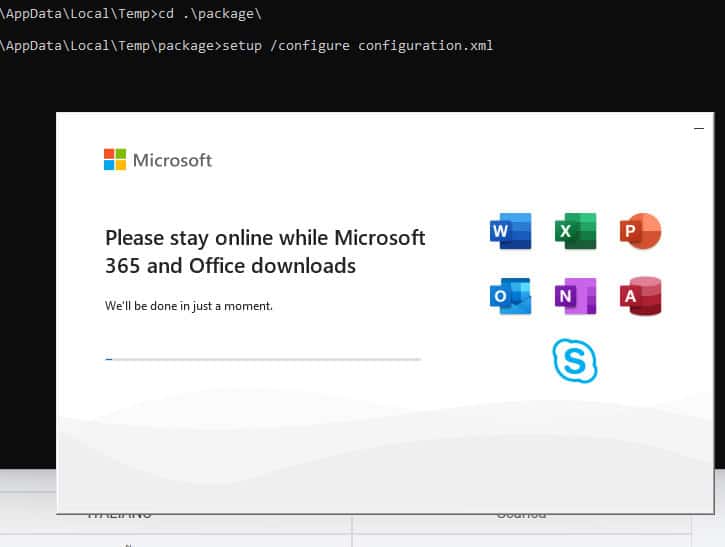
Installation runs automatically and takes a few minutes depending on your connection. You don’t need to enter anything yet — just wait for it to finish.
4
Open any Office app
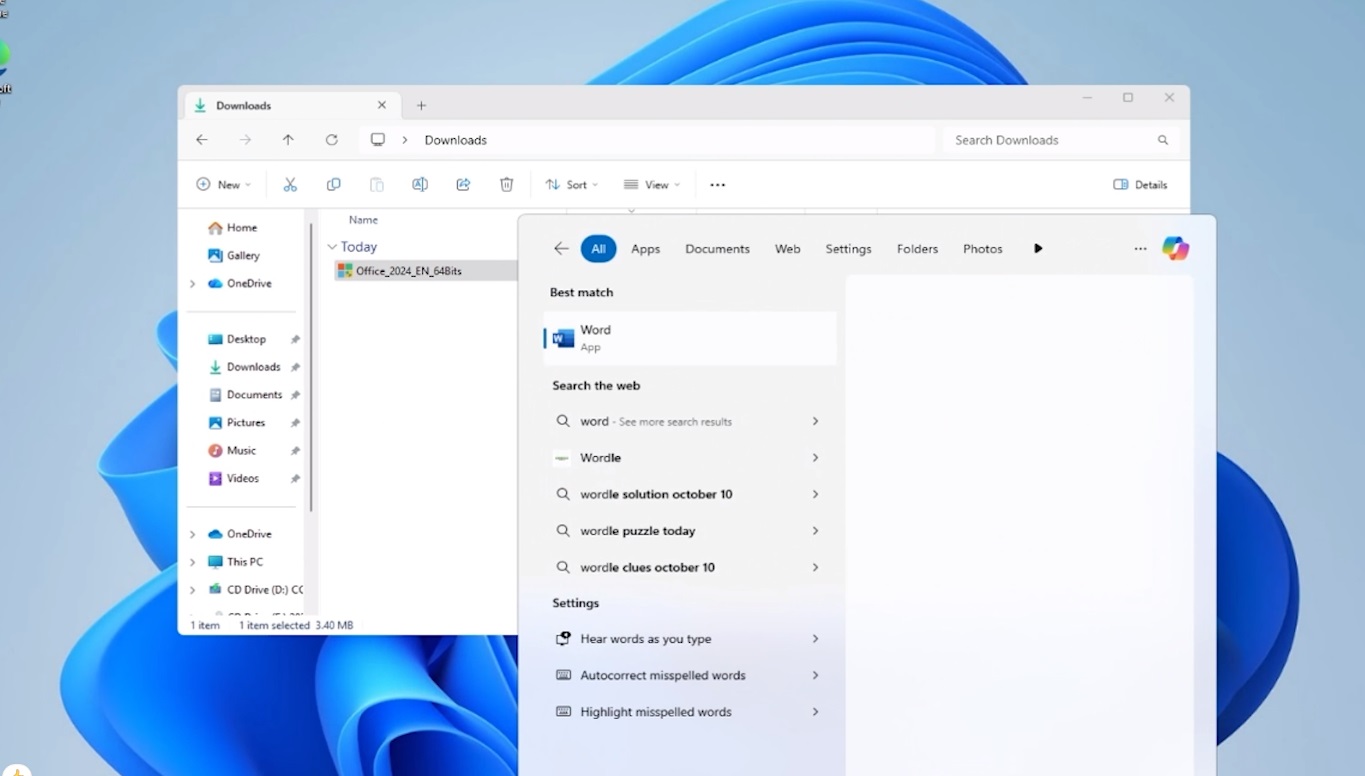
Once setup completes, open the Start menu and launch any installed app, for example Word or Excel. You can pin it to the taskbar for faster access later.
5
Go to Account → Change Product Key
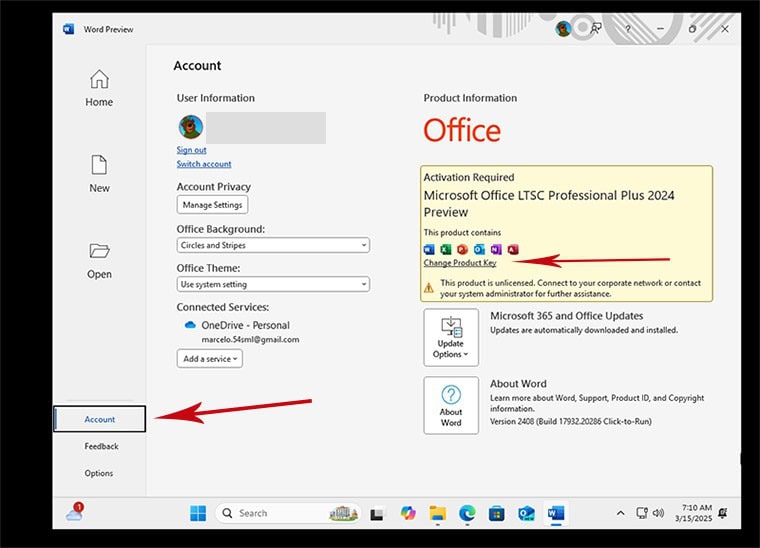
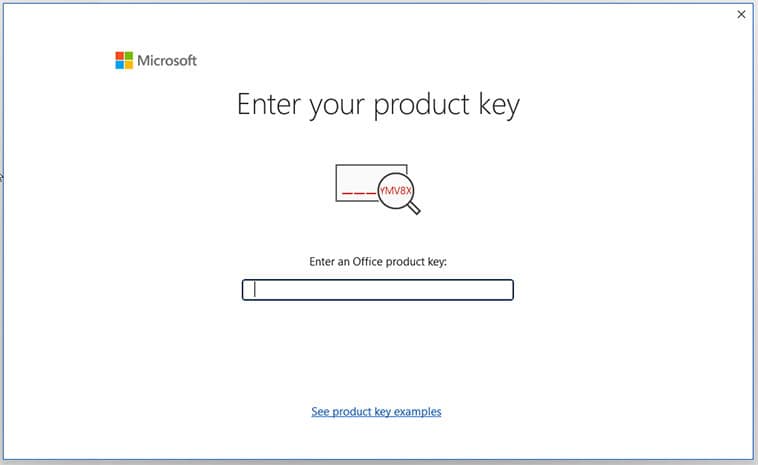
Inside the app, open File ▸ Account (bottom-left). Click Change Product Key below the Office icons to open the activation box.
6
Enter your 25-character key
Type or paste the product key from your order email and confirm. Your copy of Office is now genuinely activated — the key is yours for life on this device.
System requirements
- 1 GHz or faster, 2-core 32-bit (x86) or 64-bit (x64) processor
- 4 GB RAM (2 GB minimum on 32-bit)
- 4 GB of free hard-disk space
- Windows 10 or Windows 11
- An internet connection to download Office files during setup
License & activation
Activation happens directly inside the Office app using the Change Product Key box shown above — no third-party tools are ever needed. If you also want to manage the licence online, sign in with a free Microsoft account at setup.office.com. Tip: remove any pre-installed trial version of Office first and restart the PC to avoid conflicts.
Stuck on a step?
Our order team can help with license-key delivery and activation questions. Reach us at services@maventechsoftware.com or call 1 (805) 294-1524.
