Installation & Activation Guide
How to install & activate Microsoft Word 2021 (Mac) Lifetime License No Subscription
Follow these simple, illustrated steps to get Microsoft Word 2021 (Mac) Lifetime License No Subscription up and running on your macOS device. Takes about 10 minutes.
The installation at a glance
STEP 1Redeem key
STEP 2Download .pkg
STEP 3Run installer
STEP 4Mac password
STEP 5Finish
STEP 6Sign in & activate
Step-by-step instructions
1
Redeem your product key
Office for Mac is downloaded after you redeem the licence. Click Activate / Sign in below (this opens setup.office.com), sign in with a free Microsoft account or create one, then enter the 25-character product key from your order email, choose your country/region and click Continue. Your product now appears under Services & subscriptions in your account.
2
Download Office for Mac from your account
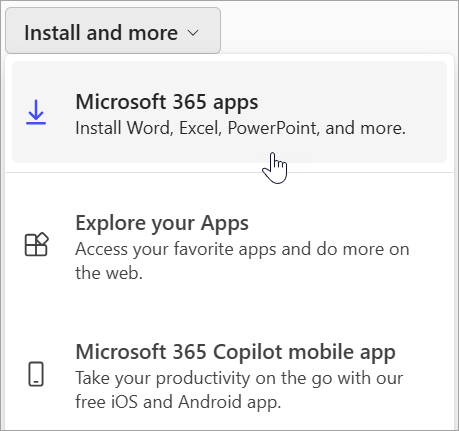
Go to your Microsoft account (account.microsoft.com), find Office Home & Business under the products you own, click Install and choose Mac. The Microsoft Office installer.pkg file downloads to your Downloads folder.
3
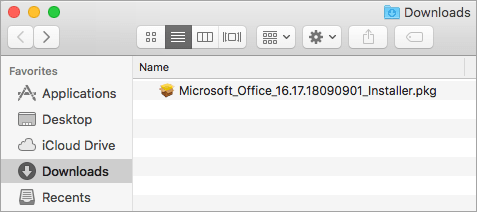
Open the installer package
Open Finder ▸ Downloads and double-click Microsoft Office installer.pkg to launch the wizard. Tip: if macOS says it’s from an unidentified developer, wait a moment, then Control-click the file and choose Open.
4
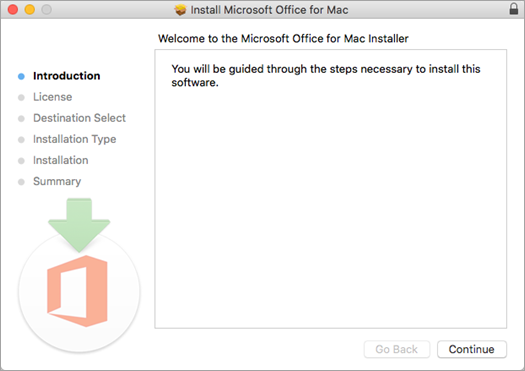
Run the installer
On the first screen click Continue, review the software licence and click Continue, then Agree. Confirm the disk-space requirement / install location and click Install. (To install only certain apps, click Customise first and untick the ones you don’t need.)
5
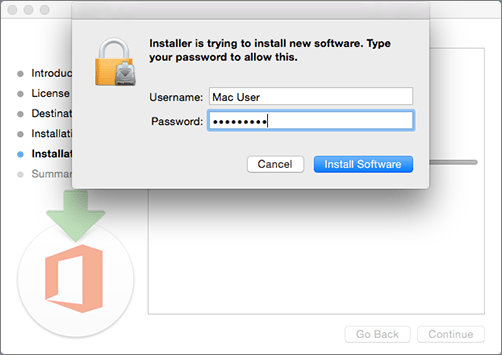
Enter your Mac password
When prompted, type your Mac login password (the one you use to sign in to your Mac) and click Install Software to begin copying the apps.
6
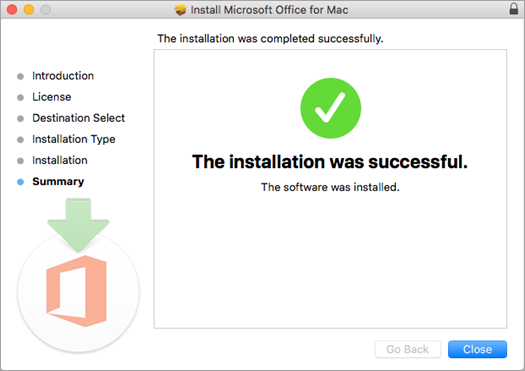
Finish the installation
Office installs in a few minutes. When you see “The installation was successful”, click Close. You can drag the installer package to the Trash afterwards.
7
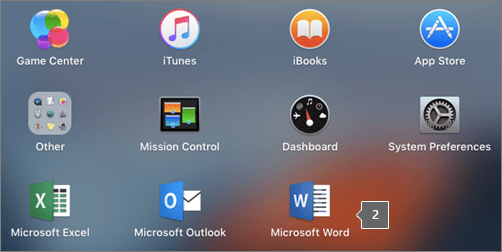
Open Word from Launchpad
Click the Launchpad icon in the Dock and open Microsoft Word (or Excel / PowerPoint). Tip: Control-click the app in the Dock and choose Options ▸ Keep in Dock to pin it for quick access.
8
Sign in to activate
The What’s New window opens automatically — click Get Started, then Sign in and use the same Microsoft account you redeemed the key with. Activation completes instantly (there is no product-key box on Mac). You can confirm any time under File ▸ Account.

System requirements
- One of the three most recent versions of macOS (Apple silicon or Intel)
- 4 GB RAM
- 10 GB of available disk space on an APFS-formatted drive
- 1280 x 800 or higher screen resolution
- An internet connection and a Microsoft account
License & activation
On Mac the licence lives in your Microsoft account. Redeem your key at setup.office.com, then sign in with the same account inside Word/Excel to activate — there is no product-key box on Mac. Important: if an older Office version or a Microsoft 365 trial is already installed, uninstall it first (drag those apps from Applications to the Trash) to avoid activation conflicts. Confirm activation under File ▸ Account.
Stuck on a step?
Our order team can help with license-key delivery and activation questions. Reach us at services@maventechsoftware.com or call 1 (805) 294-1524.
